
I work with PDF files in Visual Studio Code quite often, and I wanted an extension that would let me open them without switching to another application every time: specs, documentation, datasheets and, every now and then, a form to fill in. The ones I found, however, only display the document. Forms are where it gets annoying: the fields look editable, you type into them, but when you close the file nothing has been saved.
After running into this a couple of times, I decided to build one that would fill those gaps. It's called PDF Tools, it's free and open source (MIT license), and you can get it from the Visual Studio Marketplace. The source code is on GitHub, and the documentation lives in the project wiki.
Where it started: actually saving forms
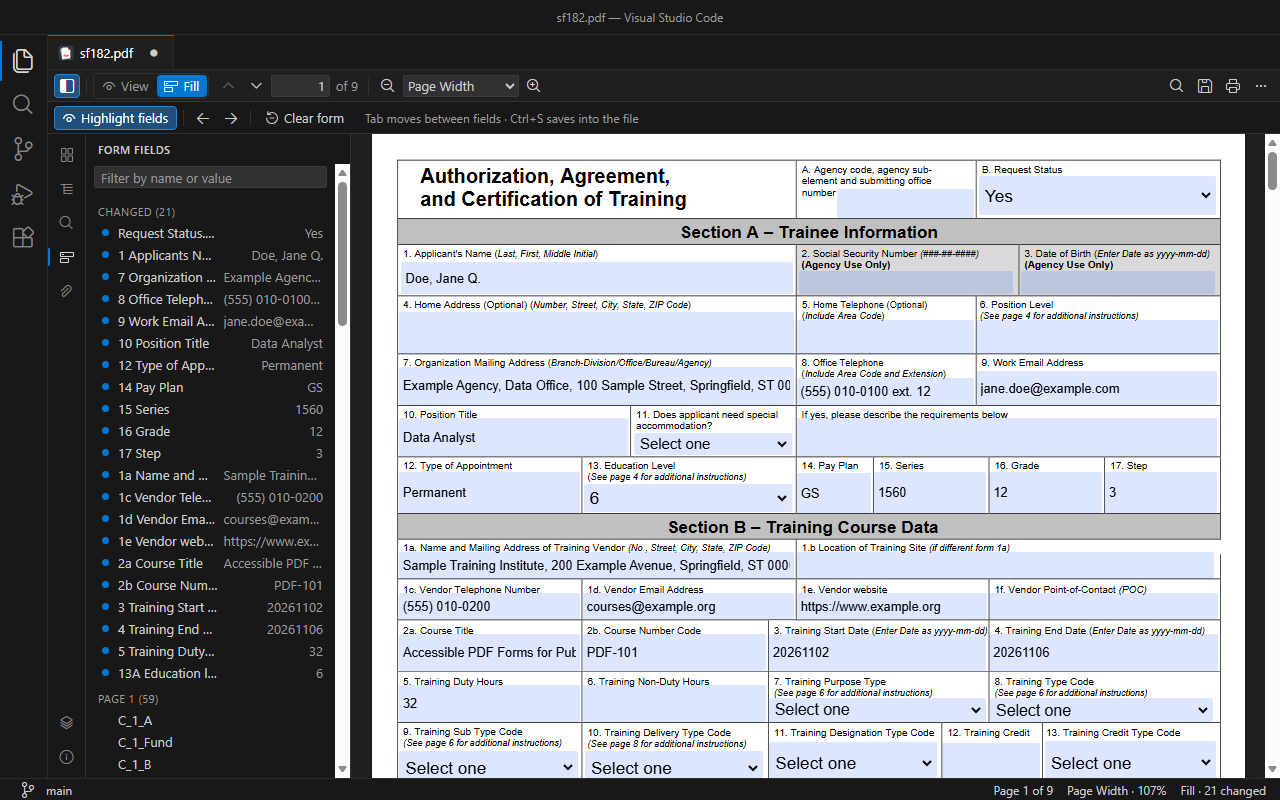
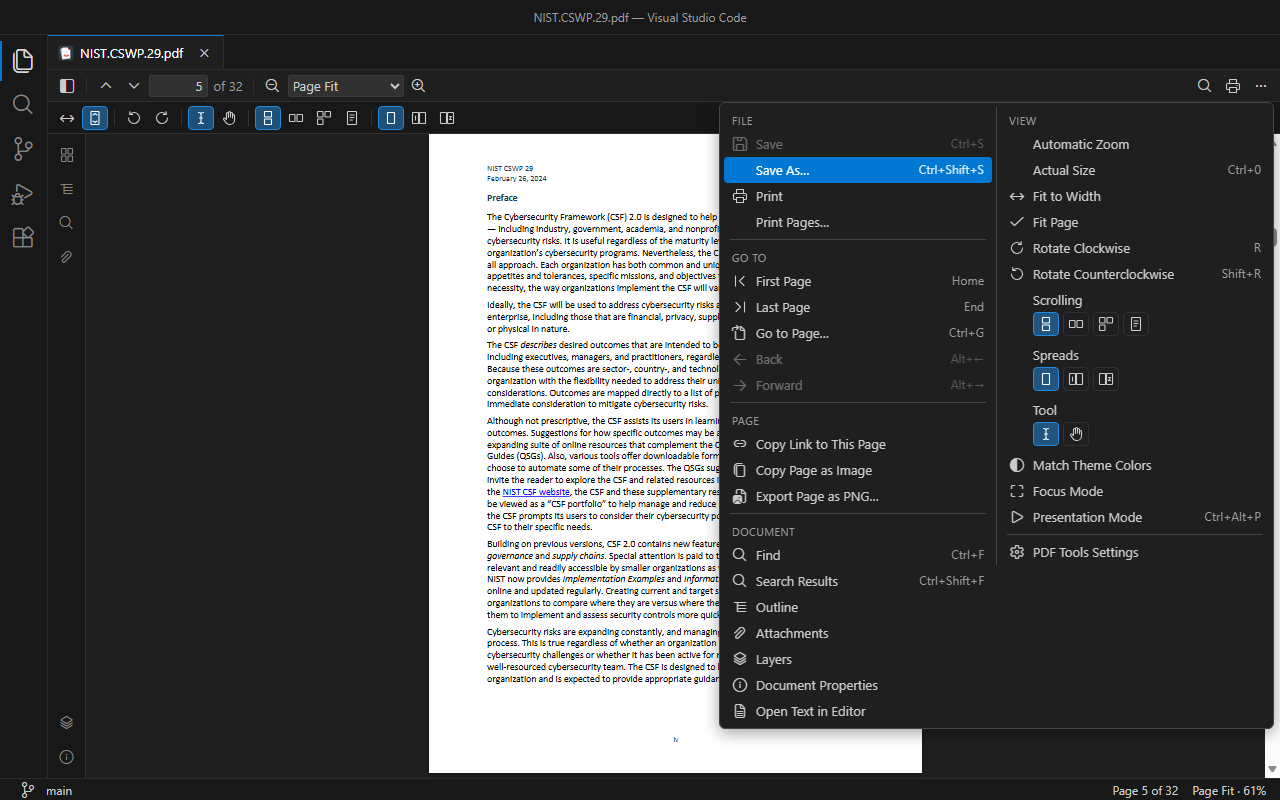
The first thing I wanted was to fill in a PDF form and save it with Ctrl+S, just like a text file, and then find the values there when opening the file in Acrobat or any other program. To make that work, PDF Tools isn't a preview but a proper editor: unsaved changes show the usual dot on the tab, and Save As, Revert File and auto save behave as they do for any other file. If you close VS Code with a half-filled form, the values are still there when you reopen it.
One detail I cared about: changes are appended to the file as an incremental update, so the original content of the PDF is never rewritten.
For longer forms I added a few conveniences I had been missing: a panel listing the fields (changed ones, required ones, grouped by page), a command that jumps to the next required field that's still empty, and the option to export and re-import the data as JSON or XFDF, the format Acrobat uses. I've used that last one, for example, to fill the new version of a form with the data from the old one.
A viewer that behaves like VS Code
While I was at it, I wanted plain reading to be comfortable too. Rendering is done by PDF.js, the same engine Firefox uses, and around it are the things I use most in a PDF reader:
- page navigation, Go to Page with Ctrl+G, and Back/Forward after following an internal link;
- zoom (including Ctrl+mouse wheel), rotation, vertical, horizontal or single-page scrolling, and spreads;
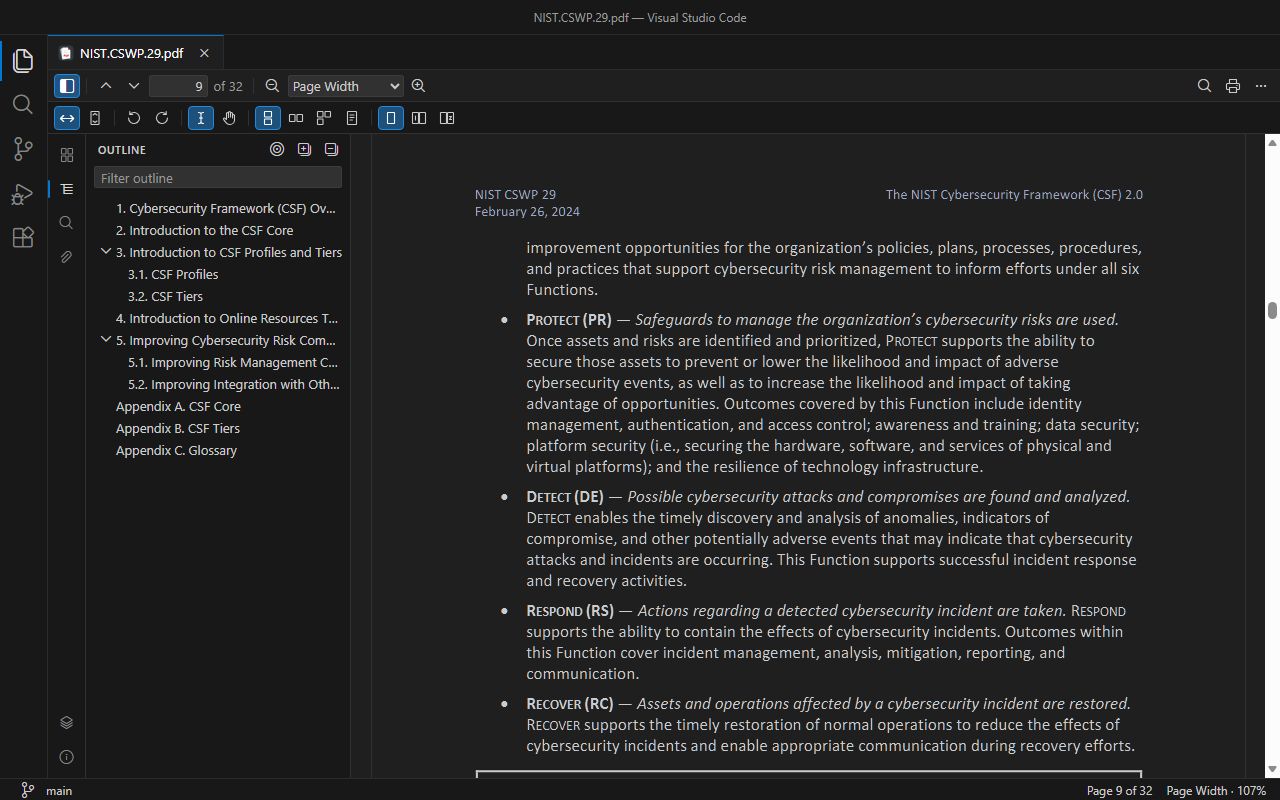
- a sidebar with thumbnails, outline (bookmarks), attachments, layers and document properties, fonts included;
- each PDF reopens at the page and zoom level you left it at.
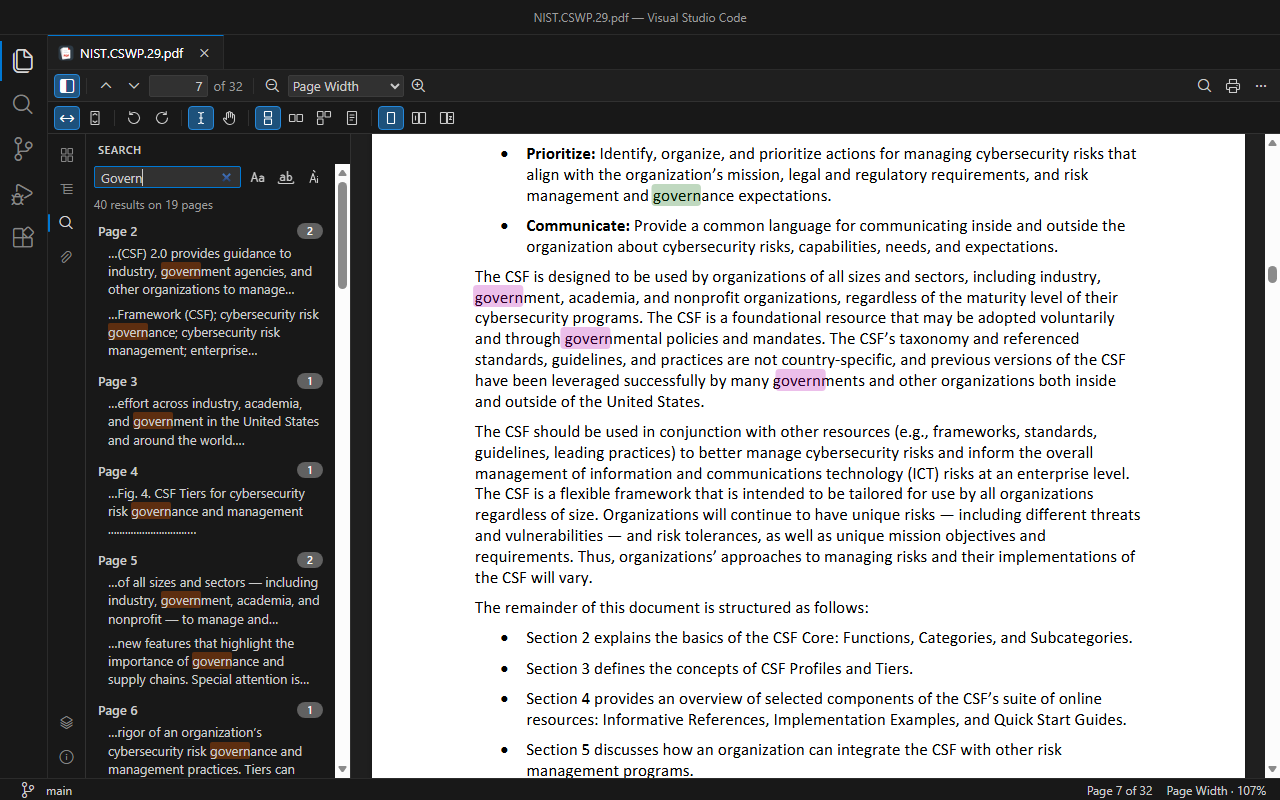
Search (Ctrl+F) works like VS Code's and ignores accents by default, so searching for cafe also finds café. Ctrl+Shift+F opens a list of every result instead, each with a bit of surrounding text, grouped by page.
Since I almost always use a dark theme, going from the editor to a bright white page bothered me. So I added a Match Theme Colors option, which shows pages with the active theme's background and text colors while leaving images in their own colors. There's also a Focus mode, where the page takes the whole editor and only a small floating toolbar remains, and a full-screen presentation mode (Ctrl+Alt+P).
Printing and exporting
Printing was the trickiest part: VS Code doesn't let extensions open the print dialog. So PDF Tools writes a temporary copy of the document, including form values you haven't saved yet, and opens it in your default PDF application, where you print as usual. You can print every page, just the current one, or a range like 1-3, 7, 10-.
For exporting I added the things I actually needed: opening the whole text of the PDF in a new editor tab, copying a page as an image or saving it as PNG, and copying a vscode:// link that reopens the PDF at that exact page, which comes in handy in notes and Markdown files.
How to use it
Install it from the Marketplace, or search for "PDF Tools" in the VS Code Extensions view, and open a .pdf file. Every command is in the toolbar, in the … menu and in the Command Palette under PDF Tools. If you already have another PDF extension installed, VS Code will ask which editor to use the first time: pick PDF Viewer.
The extension is available in English, Italian, French and German and follows VS Code's display language. It works entirely offline: it collects no data and makes no network requests, so your PDFs stay on your machine.
In the wiki I've put together guides on getting started, filling in forms, printing, exporting, settings and keyboard shortcuts, plus a FAQ page.
What it doesn't do (yet)
There are a few limitations worth knowing about. XFA forms, the dynamic ones created with Adobe LiveCycle or AEM Designer, aren't supported. You can't edit the text that's already in the PDF, and search doesn't work in scanned documents without a text layer, since there's no OCR. The full list is in the README.
If you try it and find a bug, or something you'd like is missing, you can open an issue on GitHub or get in touch: any feedback is welcome. And if you find it useful, a review on the Marketplace would be much appreciated.