Table of Contents
- What “debounce” means (in human terms)
- How the script avoids the “hold key” pitfall
- The AutoHotkey v2 script
- How to install and run it (quick checklist)
- How I tune the threshold
- Excluding apps (important for games and latency-sensitive software)
- Excluding specific keys (Backspace/Canc, Del, Ins)
- Limitations and honest expectations
If you’ve ever typed a clean sentence and then spotted a random extra letter - such as “thhis”, “spacce”, “helloo” - you already know the rage. It’s not always a software glitch, and it’s not always “fat fingers”. Many keyboards (even premium ones) can develop a persistent issue over time: a single key press intermittently registers as two presses.
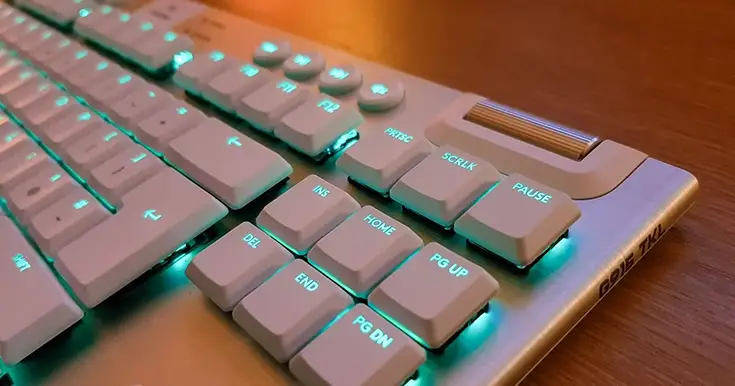
My own recurring offender is a Logitech G915 X Lightspeed. Great board, great feel… and yet, the double-typing “chatter” can be maddening. I wanted a fix that:
- Works globally (not just for a couple of keys)
- Doesn’t break key-hold behavior (auto-repeat when holding a key down should still work)
- Can be disabled automatically in specific apps (games, for example)
- Is easy to tweak and maintain
This article is the solution I ended up with: a global debouncer written for AutoHotkey v2, designed specifically to suppress rapid “bounce” double taps while letting normal holds pass through.
What “debounce” means (in human terms)
When a keyboard “chatters”, Windows receives two near-identical key press events in a very short time span—often just a few milliseconds apart. If we set a threshold (for example 150 ms) and ignore the second press that arrives too quickly, we effectively “debounce” the key.
The trick is doing this without mistakenly blocking legitimate input, especially when a key is held down and Windows generates repeated keydown events (auto-repeat).
How the script avoids the “hold key” pitfall
A naive debouncer will suppress repeated keydowns even when you’re holding the key. That’s awful for gaming and also annoying for normal typing (holding Backspace, holding a character, etc.).
My approach is simple:
- Track whether a key is currently physically down (
isDownmap). - Only apply debounce logic when we detect a fresh tap (up > down key transitions).
- If the key is already down, treat repeated keydowns as auto-repeat and pass them through.
Result: accidental double-taps get blocked, key holds still behave normally.
The AutoHotkey v2 script
Requirements: AutoHotkey v2 installed. Save this as .ahk (e.g. Keyboard-Debounce.ahk) and run it.
Tweakable settings:
debounceThreshold: debounce window in milliseconds (start at 150; adjust as needed)ignoreWindows: apps where debounce should be disabled (e.g. games)excludedSC: keys you explicitly do not want to debounce
|
1 2 3 4 5 6 7 8 9 10 11 12 13 14 15 16 17 18 19 20 21 22 23 24 25 26 27 28 29 30 31 32 33 34 35 36 37 38 39 40 41 42 43 44 45 46 47 48 49 50 51 52 53 54 55 56 57 58 59 60 61 62 63 64 65 66 67 68 69 70 71 72 73 74 75 76 77 78 79 80 81 82 83 84 85 86 87 88 89 90 91 92 93 94 95 96 97 98 99 100 101 102 103 104 105 |
; Keyboard-Debouncer v0.1 ; https://www.ryadel.com/en/keyboard-double-typing-fix-windows/ ; https://github.com/Ryadel/AutoHotkey-Scripts/scripts/Keyboard-Debouncer/ #Requires AutoHotkey v2.0 #UseHook true ; ========================= ; CONFIG ; ========================= global debounceThreshold := 150 ; milliseconds global lastTap := Map() ; last valid tap time per key global isDown := Map() ; physical down state per key global ignoreWindows := [ "ahk_exe cs2.exe", "ahk_exe GenshinImpact.exe" ] ; Only enable debounce when current window is NOT in ignore list HotIf(WinNotIgnored) ; Exclude modifier keys (recommended) and a few sensitive keys ; Note: "Canc" on IT keyboards often refers to Backspace in common usage. global excludedSC := Map( ; Modifiers "SC02A", true, ; LShift "SC036", true, ; RShift "SC01D", true, ; LCtrl "SC11D", true, ; RCtrl (extended) "SC038", true, ; LAlt "SC138", true, ; RAlt / AltGr (extended) "SC15B", true, ; LWin (extended) "SC15C", true, ; RWin (extended) "SC00E", true, ; Backspace (often called "Canc" by habit) "SC152", true, ; Insert "SC153", true ; Delete ) ; ========================= ; HANDLERS ; ========================= DebounceDown(*) { global debounceThreshold, lastTap, isDown hk := A_ThisHotkey sc := RegExReplace(hk, "^\$?\*?") ; "$*SC01E" -> "SC01E" ; If already physically down, it's auto-repeat: do NOT debounce if isDown.Has(sc) && isDown[sc] { Send("{Blind}{" sc "}") return } ; First real press (tap) isDown[sc] := true now := A_TickCount ; Suppress rapid second tap (bounce) if lastTap.Has(sc) && (now - lastTap[sc] < debounceThreshold) return lastTap[sc] := now Send("{Blind}{" sc "}") } KeyUp(*) { global isDown hk := A_ThisHotkey sc := RegExReplace(hk, "^\$?\*?") ; "$*SC01E up" -> "SC01E up" sc := RegExReplace(sc, "\s+up$") ; "SC01E up" -> "SC01E" isDown[sc] := false } ; ========================= ; HOTKEY GENERATION ; ========================= ; Generate hotkeys for scancodes (broad coverage) Loop 0xFF { sc := Format("SC{:03X}", A_Index) if excludedSC.Has(sc) continue try { Hotkey("$*" sc, DebounceDown, "On") Hotkey("$*" sc " up", KeyUp, "On") } } ; ========================= ; WINDOW FILTER ; ========================= WinNotIgnored(*) { global ignoreWindows for pattern in ignoreWindows { if WinActive(pattern) return false } return true } |
How to install and run it (quick checklist)
- Install AutoHotkey v2.
- Create a file named
KeyboardDebounceGlobal.ahk. - Paste the script above and save.
- Double-click the file to run it (you should see the AHK icon in the tray).
- Type normally and see if the double-typing disappears.
Startup tip: If you want it to run at boot, place a shortcut in the Windows Startup folder.
How I tune the threshold
Every keyboard and every “chatter” pattern is different. My starting point is:
- 150 ms if the issue is frequent and obvious
- 100–120 ms if it feels too aggressive
- 180–220 ms if the bounce is severe
If you notice that legitimate fast double-taps (like “tt” in a word) get eaten, lower the threshold. If chatter still slips through, raise it slightly.
Excluding apps (important for games and latency-sensitive software)
The ignoreWindows list disables debounce automatically whenever one of those windows is active. Add entries like:
"ahk_exe yourgame.exe""ahk_class SomeWindowClass"
That way I keep my typing sane in Windows, but I don’t risk “weird input feel” inside games.
Excluding specific keys (Backspace/Canc, Del, Ins)
I deliberately exclude some keys from debounce because they’re commonly used held down or in editing workflows. In the script, you can add/remove scancodes inside excludedSC.
The defaults include:
- Backspace:
SC00E - Insert:
SC152 - Delete:
SC153
Limitations and honest expectations
This is a software workaround. If your keyboard is physically failing, the “real” fix is hardware repair/replacement. But if the issue is intermittent, hard to reproduce, or you’re trying to extend the usable life of a keyboard you love, this approach can be a surprisingly effective long-term bandage.
In my case, it turned a chronic annoyance into something I simply don’t think about anymore: exactly what I wanted.